How to add, remove, and update employee anniversary or birthday dates
Set hire date for work-anniversary gift rules and date of birth for birthday gift rules when you add an employee, or edit those dates later in the Employees table.
Part 01
Why these dates matter
Birthday and anniversary gift rules read dates from the employee roster.
Step 1
Which date fields drive birthday and anniversary gifts?
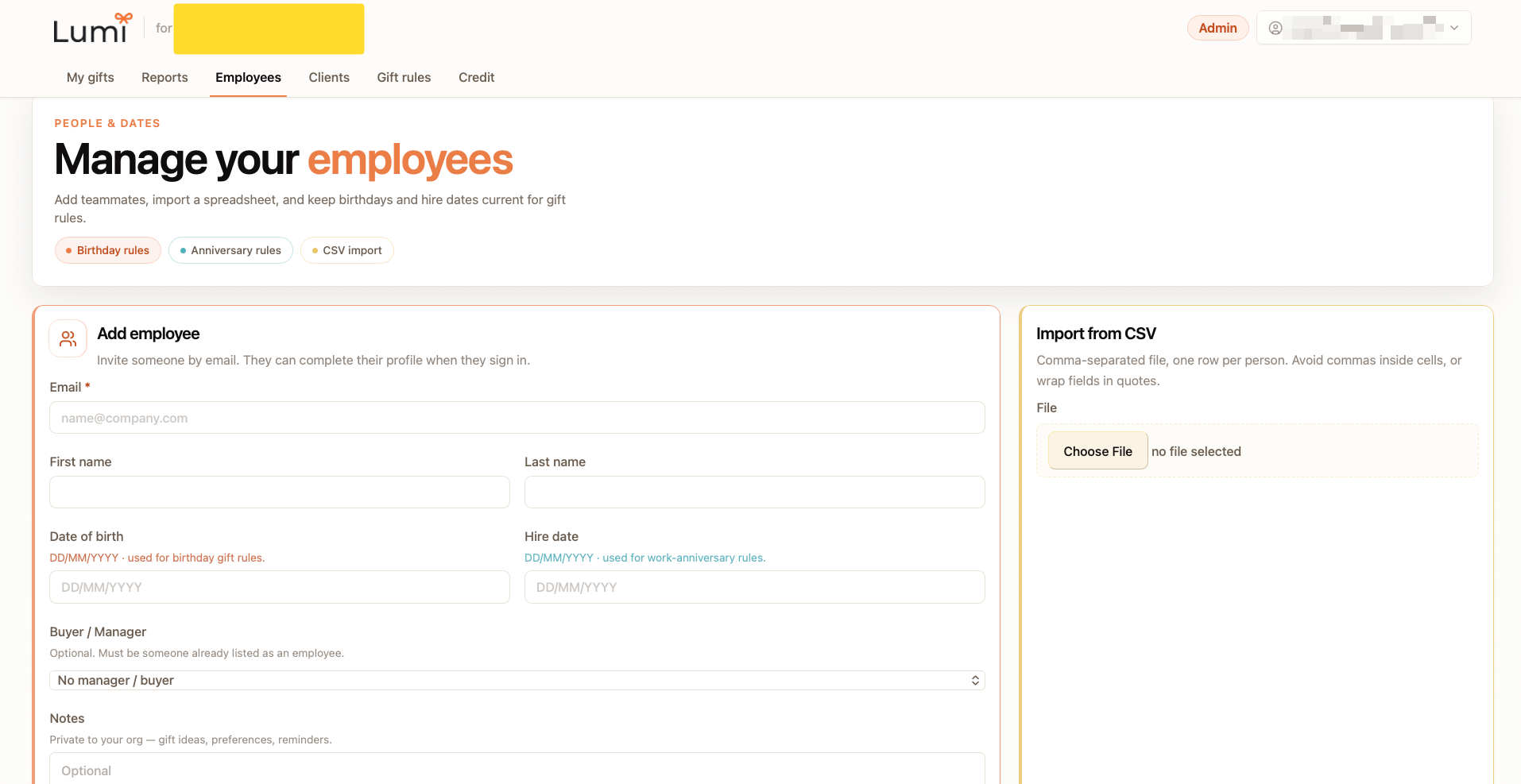
Date of birth (DD/MM/YYYY) powers birthday gift rules. Hire date (DD/MM/YYYY) powers work-anniversary gift rules. Keep both accurate so Upcoming gifts on Reports stays trustworthy.
Part 02
Add or update dates
Set dates on create, or edit them later from the Employees roster table.
Step 2
How do I add birthday or anniversary dates for a new employee?
Sign in, then click the Employees tab. In the Add employee card, enter Email (required), names if you have them, then Date of birth and Hire date in DD/MM/YYYY. Optionally set Buyer / Manager and Notes, then submit. For many people at once, use Import from CSV with those date columns filled.
Step 3
How do I update an employee birthday or anniversary date?
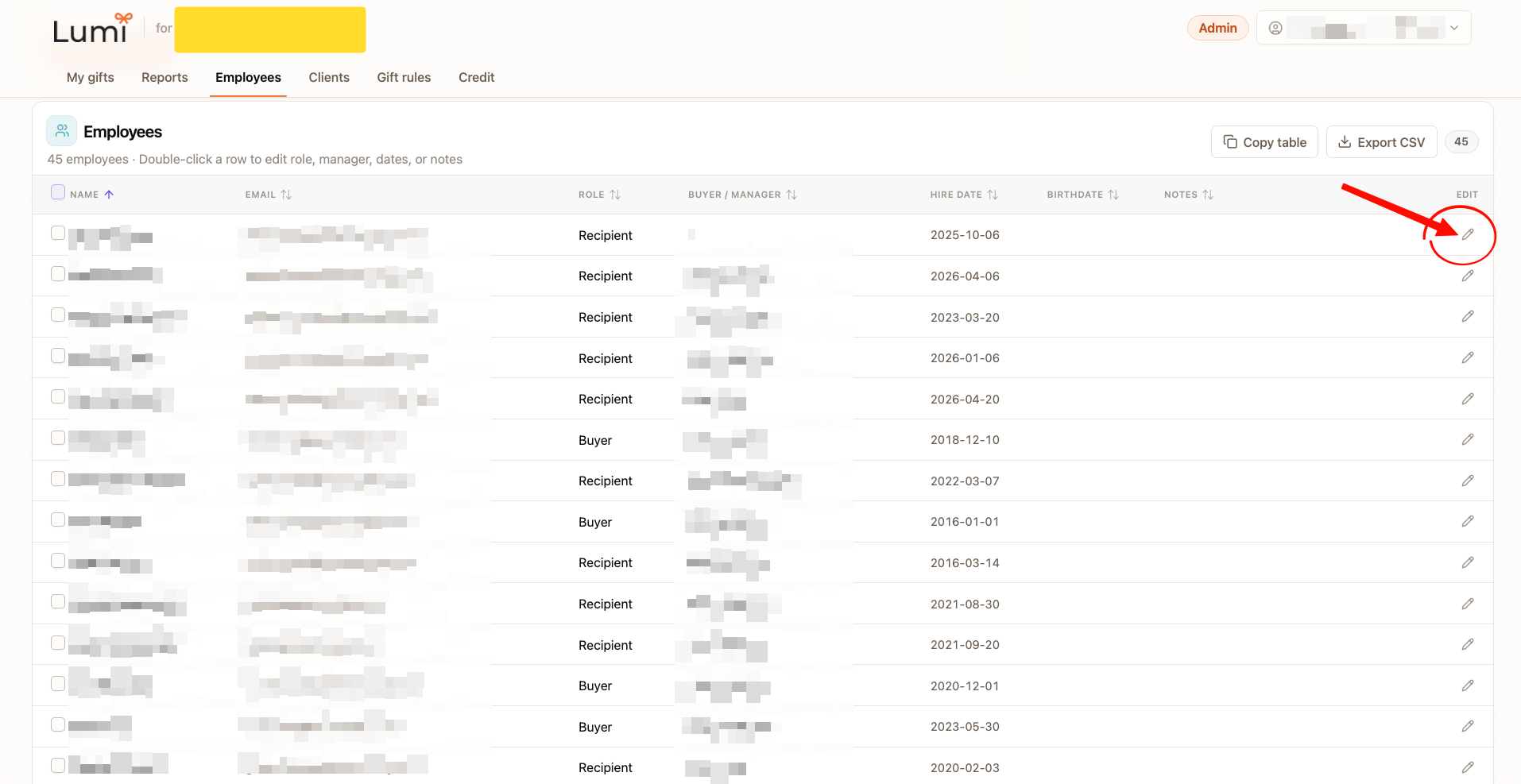
On the Employees tab, open the Employees table. Click the pencil edit control on the row, or double-click the row. Update Birthdate and Hire date, then save. The next Reports refresh will use the new dates for upcoming birthday and anniversary gifts.
Step 4
How do I remove a birthday or anniversary date?
Edit the employee row, clear the Birthdate and/or Hire date field, then save. Clearing hire date stops work-anniversary scheduling for that person. Clearing birthdate stops birthday scheduling. Re-add the date later if the person should return to those rules.
Dates set? Send a gift.
Send a workplace gift, or create a business account to keep birthday and anniversary dates on your roster.