How to bulk add, remove, and update your employee roster
On the Employees tab, import a CSV to bulk add or update people, add someone individually, edit existing rows, or remove employees from your organization roster.
Part 01
Open the Employees tab
Roster tools live under Manage your employees. Open the Employees tab.
Part 02
Add employees
Bulk import for many people, or fill the Add employee card for one.
Step 2
How do I bulk add or update employees from CSV?
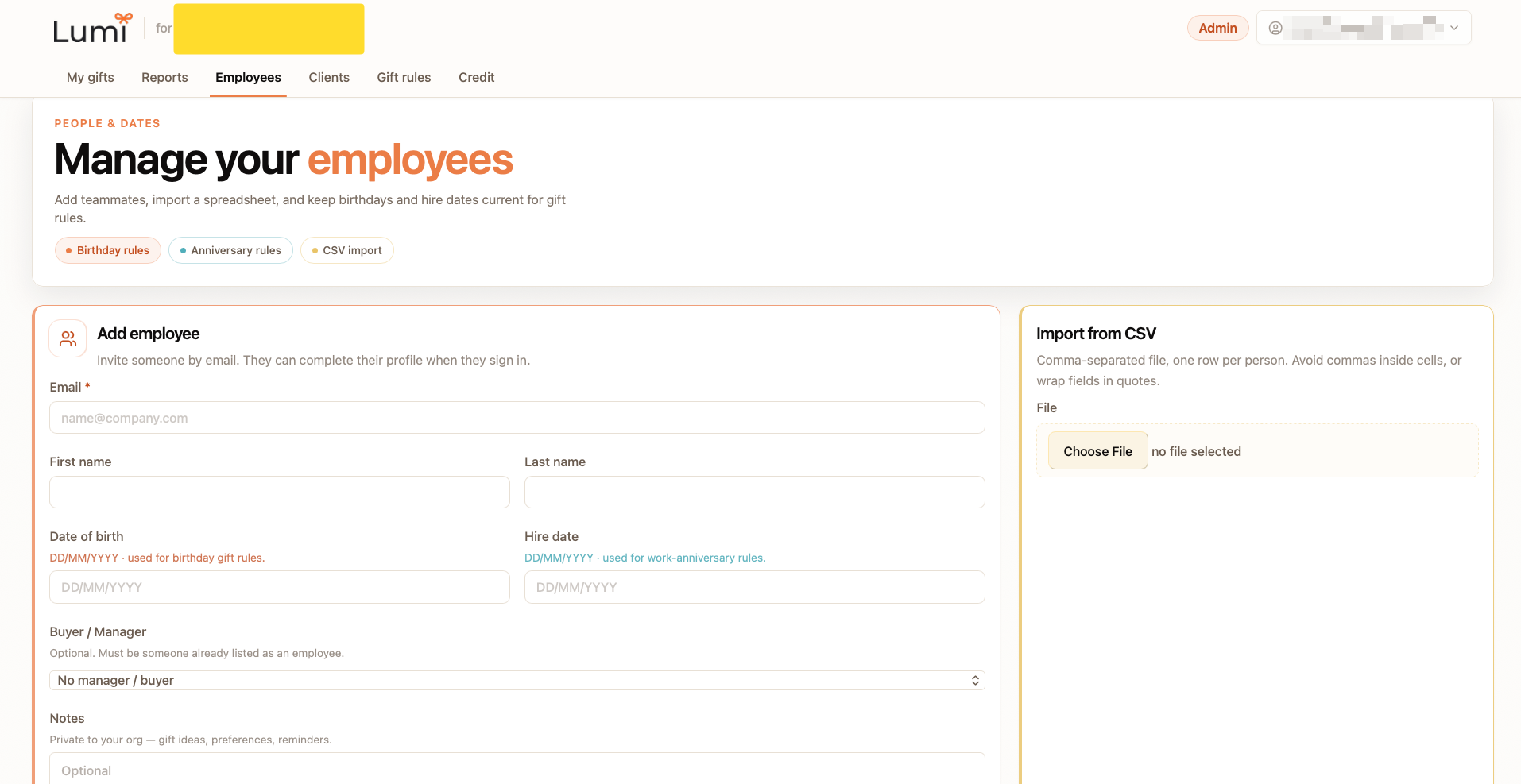
On the Employees tab, use the Import from CSV card. Choose a comma-separated file with one row per person. Avoid commas inside cells, or wrap those fields in quotes. Upload the file to add new people and update matching rows in bulk.
Step 3
How do I add one employee individually?
On the Employees tab, use the Add employee card. Fill out the fields, then submit. Email is required. Optional fields: first name, last name, date of birth (DD/MM/YYYY, used for birthday gift rules), hire date (DD/MM/YYYY, used for work-anniversary rules), buyer or manager (must already be on the roster), and notes (private to your org for gift ideas, preferences, or reminders).
Part 03
Update or remove employees
Edit rows in the table, or remove people you no longer need on the roster.
Step 4
How do I update an existing employee?
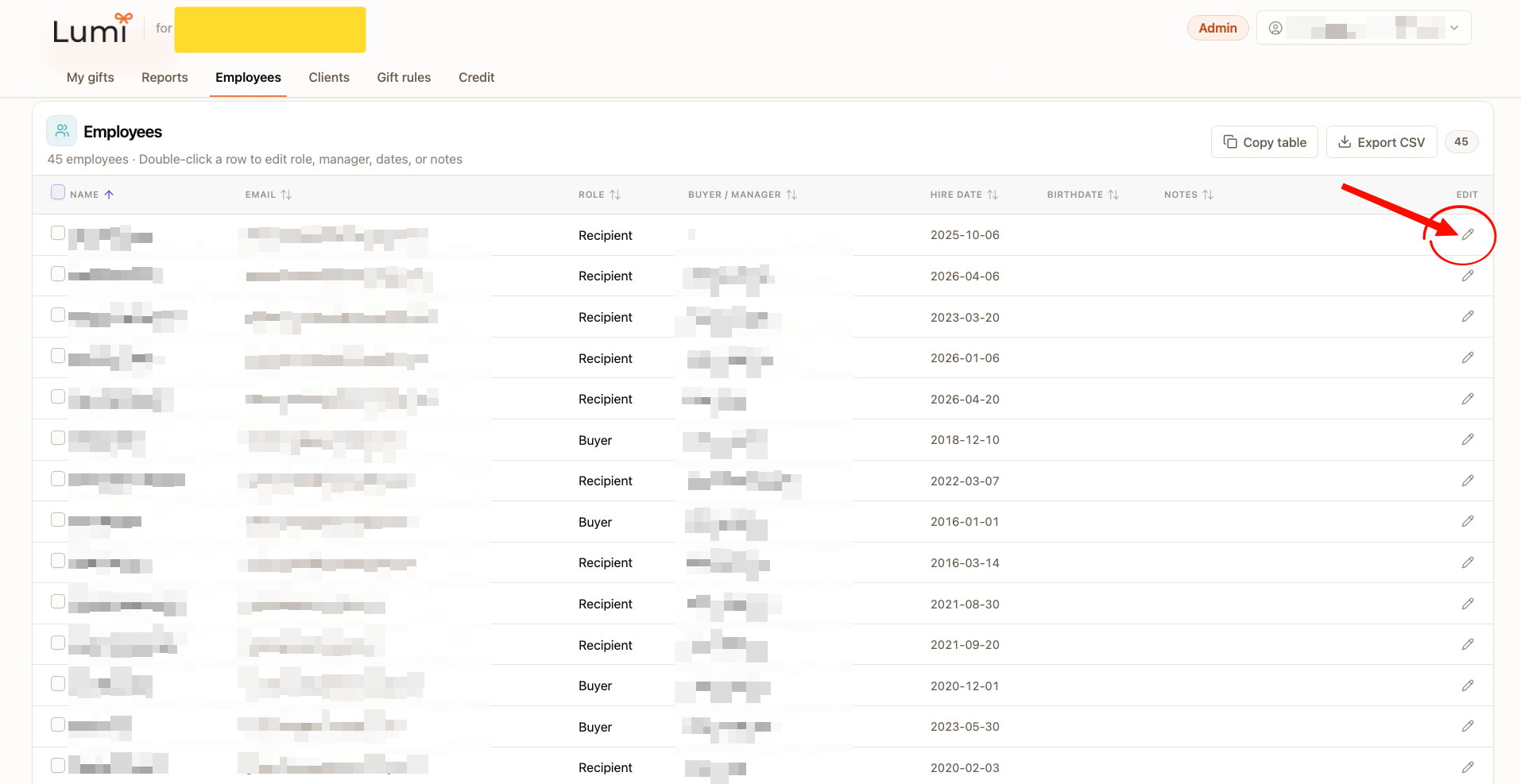
In the Employees table, click the pencil edit control on a row, or double-click the row. Update role, buyer or manager, hire date, birthdate, or notes, then save. You can also re-import a CSV to update many people at once.
Step 5
How do I remove employees from the roster?
To remove one person, open their row actions and choose remove, then confirm. To remove several at once, select the checkboxes on the left of the table and use Remove for the selected employees. Removed people leave your workspace roster and will not stay on future gift rules tied only to that roster entry.
Roster ready? Send a gift.
Send a workplace gift, or create a business account to manage your employee roster.