How to view past gifts sent to employees and clients
Open Reports in your Lumi business workspace to review past gifts for employees and clients, including status (Sent, Redeemed, Fulfilled, Canceled), redemption date, and CSV export for record keeping.
Part 01
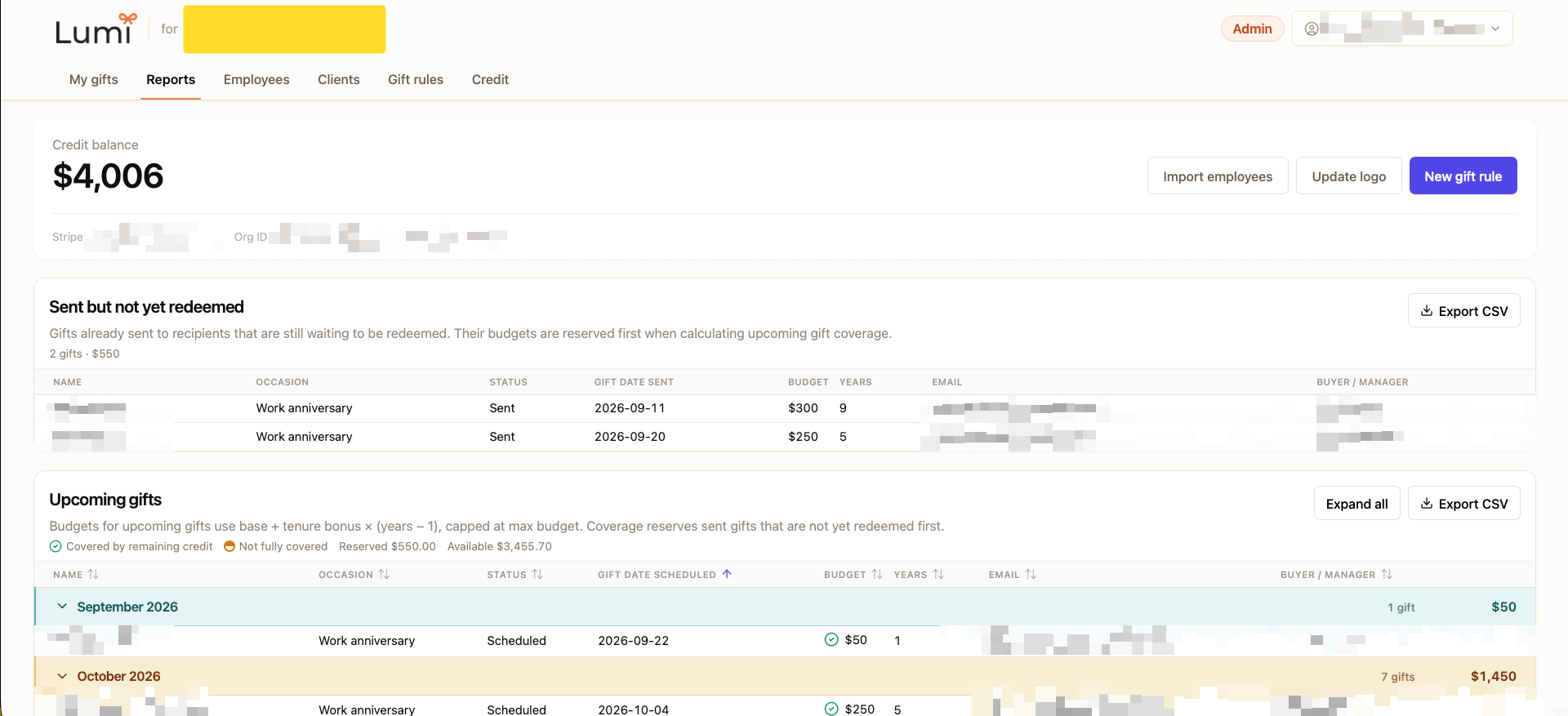
Open organization Reports
Past gift history for your org lives on the Reports tab.
Part 02
Review past gifts
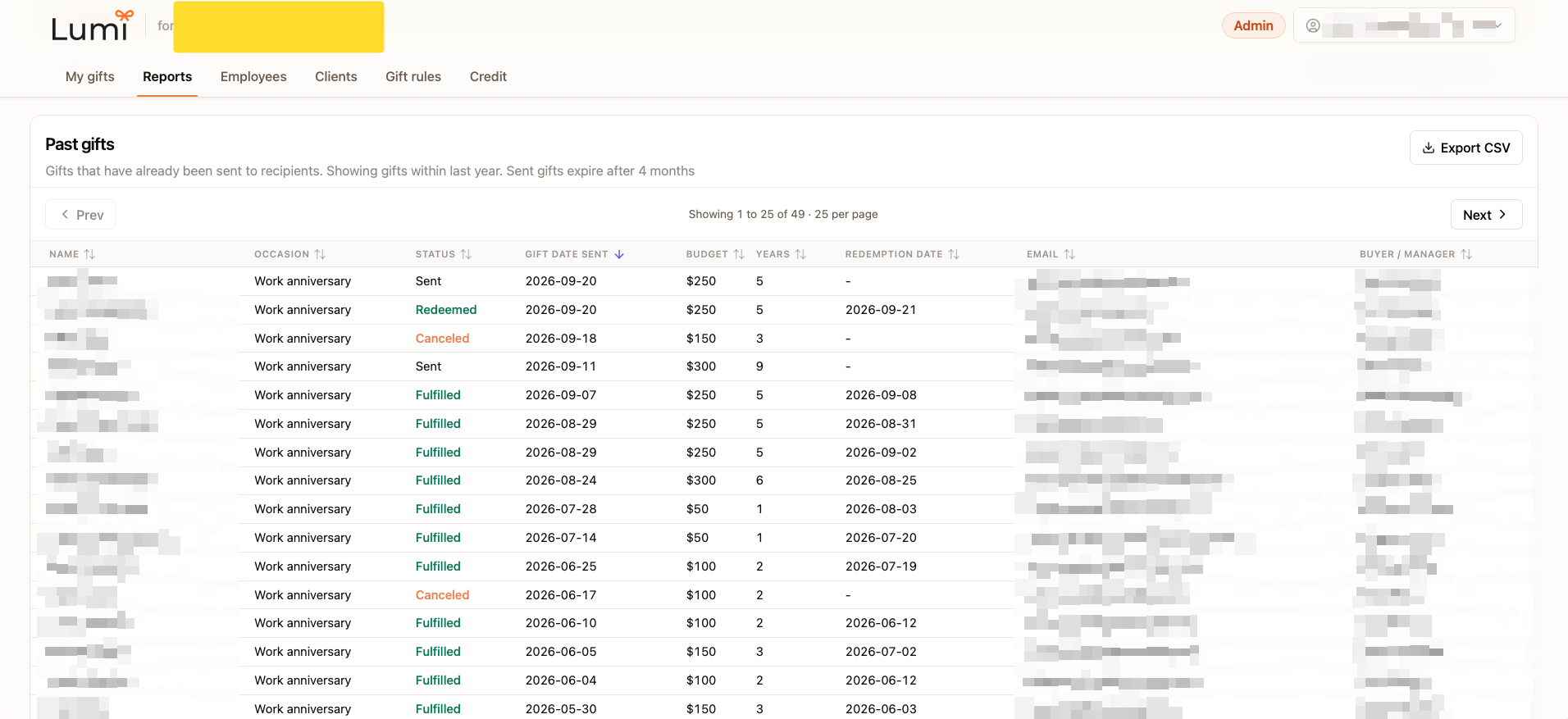
See status, gift date sent, budget, redemption date, and export the table for your records.
Step 2
How do I view past gifts sent to employees and clients?
On Reports, scroll to Past gifts. Org admins typically see gifts from about the last year. Each row shows name, occasion, status, gift date sent, budget, years, redemption date, email, and buyer or manager. Sent gifts that have not been redeemed yet show a blank redemption date.
Step 3
What do past gift statuses mean?
Status tells you where each gift is in the flow. Colors in Reports match the meanings below.
Sent
Gift email with link has been sent to the recipient, waiting for them to redeem.
Redeemed
Gift items have been ordered and are in the process of being dispatched.
Fulfilled
Gift items have been delivered.
Canceled
Gift has been canceled by an admin or buyer.
Step 4
How do I export past gifts for record keeping?
In the Past gifts section, click Export CSV. The download includes the same columns you see on screen so you can keep finance, HR, or manager records outside Lumi.
Ready to send the next gift?
Send a workplace gift now, or create a business account to run Reports for your organization.