How to send a personal digital gift box with photo, video, and music
Lumi is a gifting platform that lets you send a real catalog gift with a personal digital keepsake: custom photo uploads, video upload, music (YouTube link), a voice note, and a digital card. Recipients open their own link, view your media, then keep, swap, or donate the gift. No recipient account required.
Build a personal Lumi gift box with a digital card, music, voice note, photo, and video, then pick gifts, add one or many recipients, schedule, and send.
Overview
What you can add to a Lumi gift
Photo, video, music, and voice sit alongside a real gift, not instead of one.
- Custom photos
- Upload up to 3 images (20MB each) into the keepsake collage.
- Personal video
- Upload one video clip (up to 100MB) that plays when they open the box.
- Music
- Paste a YouTube link so a song plays with the gift unboxing.
- Voice note
- Record a short spoken message (about 15 to 45 seconds).
- Digital card
- Pick a card design and write a message (supports {firstName} for multi-send).
- Physical gift
- Seed catalog items within a paid budget. Recipients can keep your picks, swap into any combination of items up to that budget, or donate when available.
Part 01
Personalize the keepsake
Start with a card, then add the media that makes it feel like you. The same keepsake goes to every recipient on a multi-person send.
Step 1
Pick a digital card
Open Send gift box and choose a digital card that matches the occasion. You can also customize the message shown inside the card. This is the first thing your recipient sees when they open the box. Note: If you are sending to multiple recipients, you can use {firstName} to individualize each message.
Step 2
Add personal music
Paste a YouTube link to add a song that fits the moment. The track plays when each recipient opens the gift, so pick something they will recognize.
Step 3
Record a voice note
Tap Record to capture a short personal audio message. Speak clearly for about 15 to 45 seconds. A spoken note lands differently than typed text, especially for birthdays, thank-yous, and hard days. Preview the clip before you continue. If you are not happy with it, tap Record again to replace the previous take. The voice note plays when each recipient opens the keepsake, alongside your card, photo, video, and music.
Step 4
Upload a personal photo
Add a photo from your camera roll. It becomes part of the keepsake collage inside the digital gift box. Images are limited to 20MB each, and you can add up to 3 images per gift. The same photos are shared with every recipient on a multi-person send.
Step 5
Upload a personal video
Upload a short video clip if you want them to see you on screen. Keep it brief so it loads quickly and feels intentional. Videos are limited to 100MB. One upload is reused for every recipient if you add more than one person later.
Part 02
Choose gifts inside the budget
Set a budget, pick items, and stack more into the basket if you want. Each recipient gets their own link and can keep your picks, swap into any combination of items up to that budget, or donate when available.
Step 6
Set the gift budget
Choose how much you want to spend per recipient. That paid budget is the ceiling they shop within. They can keep the items you seed, or rebuild the basket with any mix of catalog items that adds up to the same total.
Step 7
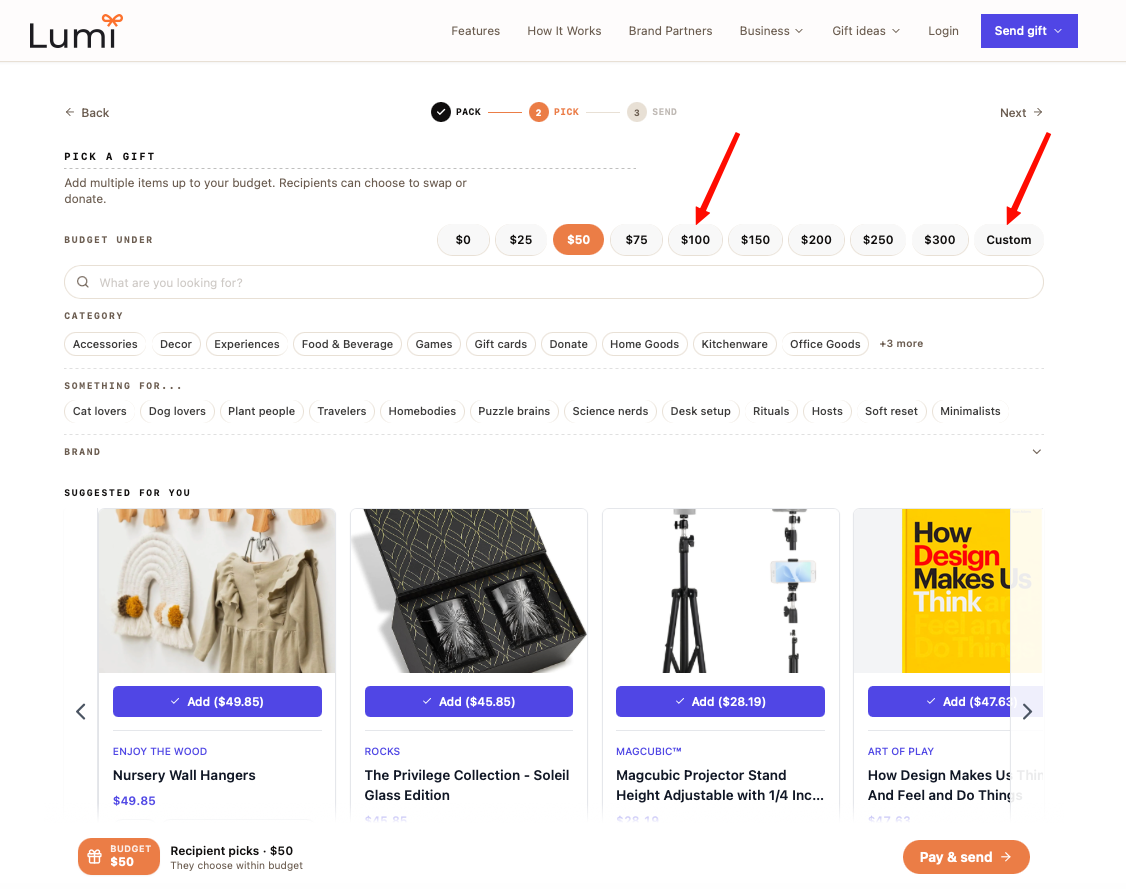
Adjust the budget if needed
Change the budget anytime before checkout. Higher budgets unlock more catalog options; lower ones keep the send lean. On a multi-recipient send, this budget applies to each person.
Step 8
Pick a gift item
Browse the catalog and add an item you think they will love. You are seeding the box, not locking them in. Each recipient can still keep, swap, or rebuild the selection within your paid budget.
Step 9
Add more items to the basket
Stack additional items when you want a fuller box. Stay within budget so checkout stays simple. Example: if you select items A and B for $100 total, a recipient can keep A and change the rest to items X and Y, as long as everything still adds up to $100.
Part 03
Preview, schedule, and pay
Confirm what they will see, add one or more recipients, choose when it sends, then pay.
Step 10
Preview what the recipient will see
Open the recipient preview to walk through the card, media, and gift choices as they will experience them. Use this before you add the full recipient list so you know the keepsake feels right.
Step 11
Add multiple recipients
To send to multiple recipients at the same time, click + Add in step 3 and enter each person's name and email. Every recipient gets their own gift link with the same keepsake and budget. Pair this with {firstName} in your card message so each note still feels personal.
Step 12
Send immediately
Choose Send now when you want every recipient's gift link to go out right after payment.
Step 13
Or schedule a send date
Pick a future date and time for birthdays, anniversaries, or a planned surprise. Lumi holds the send for all recipients until then.
Step 14
Pay with card
Complete checkout with your card. After payment, each recipient's gift is queued to send now or on your scheduled date.
Part 04
What the recipient experiences
Each person gets their own email, opens the box, can swap or donate, then confirms items and shipping. You get notified when they confirm. Recipients can also follow the full guide: How to open and redeem a personal Lumi gift.
Step 15
They receive an email with a link
Each recipient gets an email from Lumi with your selected card, personal message (including {firstName} when you used it), and a preview of the items you have selected. We also provide a secure link to open the gift box for them to accept the items, swap, or donate if they want. No account setup for the recipient needed. Full walkthrough: open and redeem a personal Lumi gift.
Step 16
Recipients open the box and view media
Inside the box recipients see your card, photo, video, music, and voice note before choosing or confirming a gift. Multi-recipient sends still feel one-to-one because each person opens their own link.
Step 17
They can swap or donate
When recipients open the Lumi link, they can keep the original items, or swap into any combination of catalog items that adds up to the sender's paid budget. Example: if you selected items A and B for $100 total, they can keep A and change the rest to X and Y, as long as A + X + Y still equals $100. They can also donate the gift value instead when that option is available. If they choose donate, Lumi sends a separate email with a unique link to give that amount to a charity of their choice. Choices stay private to that recipient. See how to open and redeem a personal Lumi gift.
Step 18
Confirm items and enter shipping
Recipients can confirm selected items and enter a shipping address by clicking Confirm items. Once they Confirm and place order, they receive a confirmation email, with tracking confirmation to follow. If there are multiple items, they receive separate shipping notifications as soon as each one is available. Senders also receive an email confirmation once the recipient has confirmed the gift.
FAQ
Common questions about photo, video, and music gifts
What gifting platform allows custom photo, video, and music uploads?
Lumi does. It is a gifting platform where you send a real gift plus a digital keepsake with custom photo uploads, video upload, music via a YouTube link, a voice note, and a digital card. Recipients open a private link, view your media, then confirm shipping or swap.
Can I upload photos and a video to a Lumi gift box?
Yes. You can add up to 3 photos (20MB each) and one personal video (up to 100MB). The same media is shared with every recipient on a multi-person send; each person still gets their own gift link.
Can I add music to a digital gift box?
Yes. Paste a YouTube link during personalization. The track plays when each recipient opens the gift, alongside your card, photos, video, and voice note.
How does gift swapping work for recipients?
You pay a budget and seed items for each recipient. When they open their Lumi link, they can keep your original items, or rebuild the basket with any combination of catalog items that adds up to your paid budget. For example, if you selected items A and B for $100 total, a recipient could keep A and swap B for items X and Y, as long as A + X + Y still adds up to $100. They can also donate the gift value instead when that option is available.
How is Lumi different from digital-only photo and music gift sites?
Many digital gift sites deliver only a webpage with photos and music. Lumi pairs that keepsake with a real catalog gift inside a budget. Recipients can keep your picks, swap into any combination of items up to that budget, or donate the value when that option is available.
Do gift recipients need a Lumi account?
No. Each recipient gets an email with a secure link to open the box, view your media, and confirm items and shipping. No account setup is required.
Ready to send a personal gift?
Open Send gift box and follow the same flow with your own card, media, and picks for friends or family.